Copy only
Chipmunk reads from the card and writes to your drive. It never writes to, moves or deletes anything on the card. There is no Move button, no Delete button and no Erase button. You erase the card when you decide.
 Backing up your cards on the road
Your backup solution on the go.
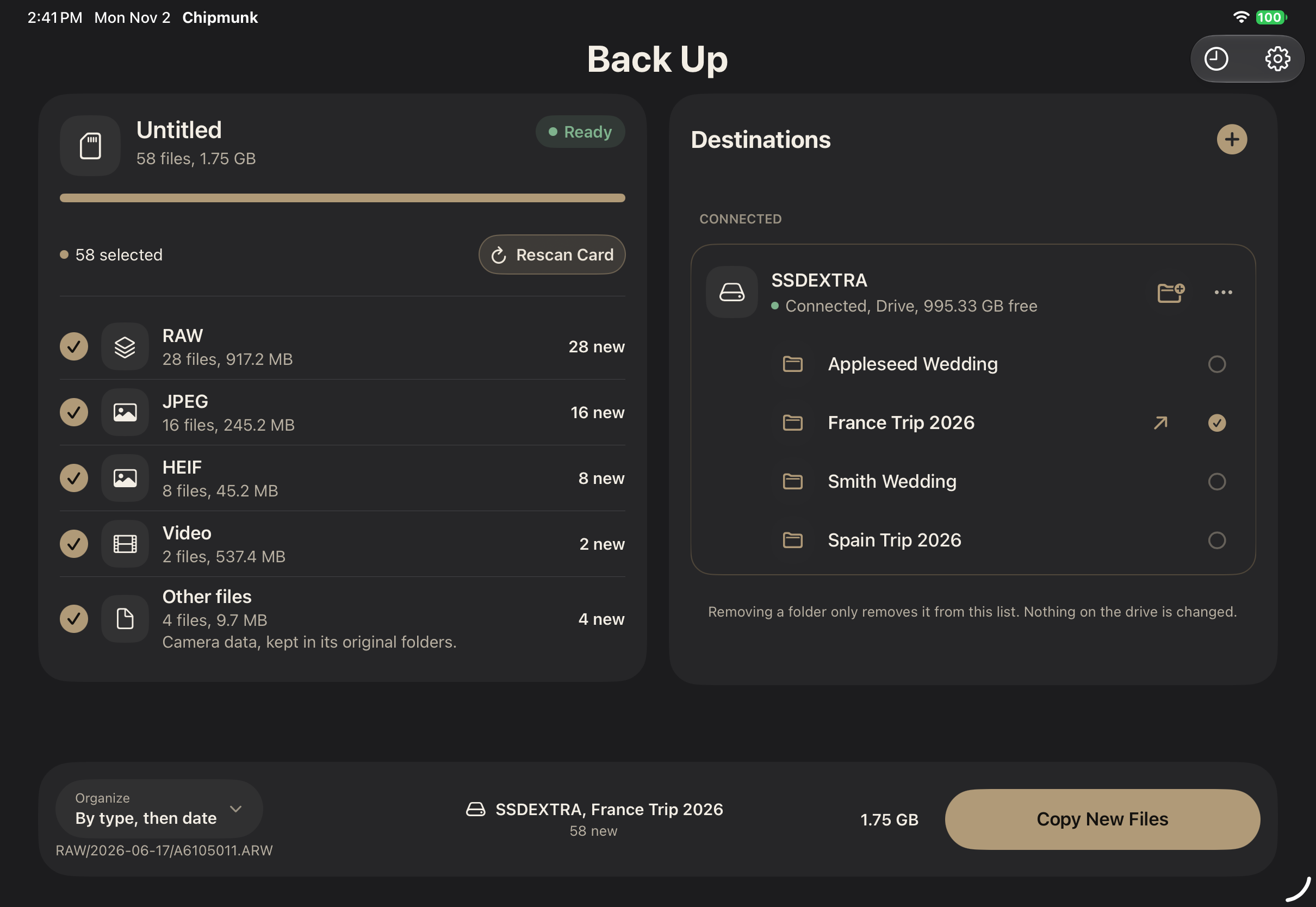
Plug in your card reader, tap Copy, and Chipmunk copies your files, checks every one and remembers what is done. No laptop. The card is never touched.
$4.99, one time. No subscription, no account, no ads. iPhone and iPad, iOS and iPadOS 26 or later.
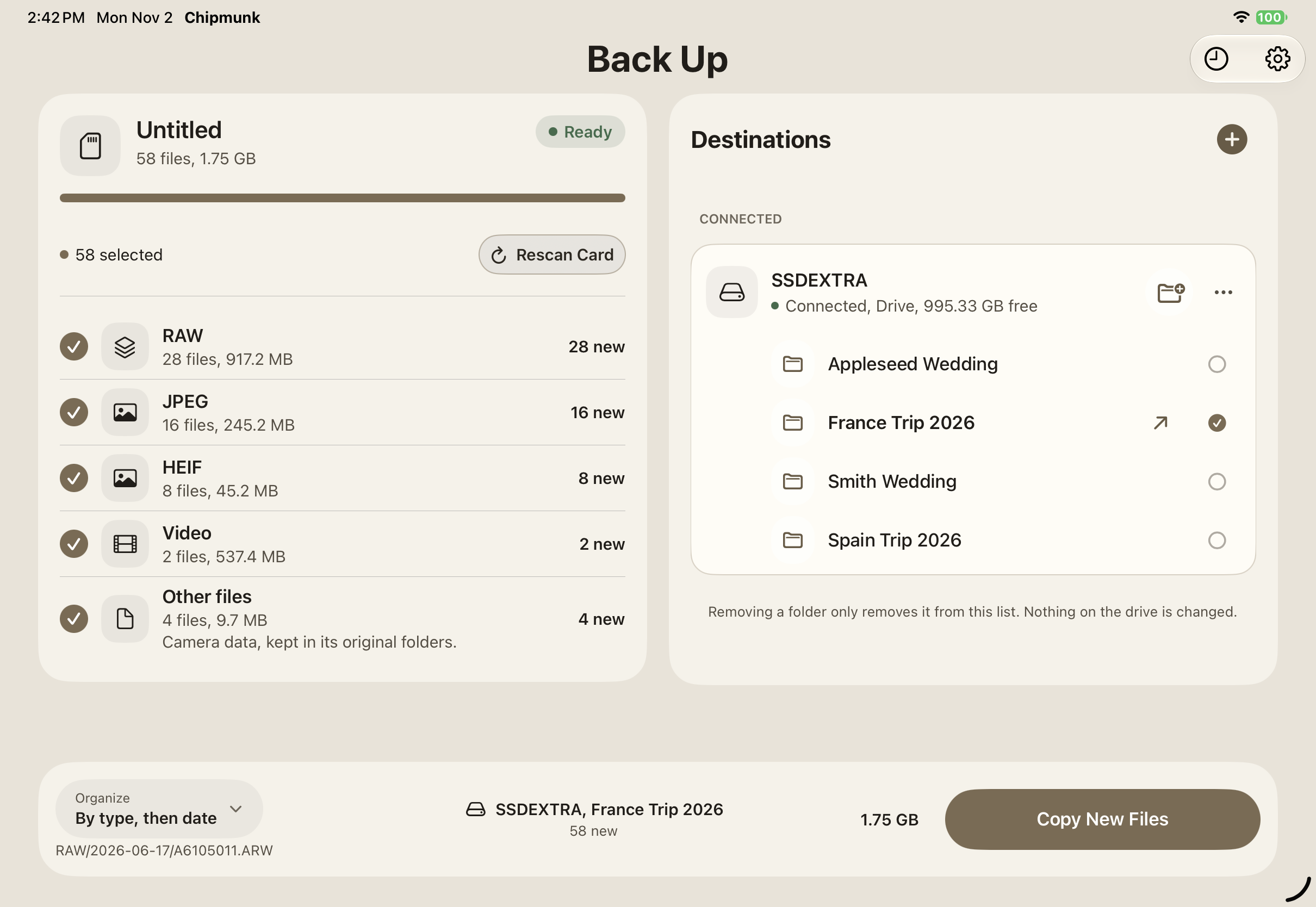
Chipmunk reads from the card and writes to your drive. It never writes to, moves or deletes anything on the card. There is no Move button, no Delete button and no Erase button. You erase the card when you decide.
Each file that finishes copying is read back from the destination and compared to what Chipmunk read from the card. Verification is on for every file and cannot be turned off.
Back up at lunch, back up again at night. Chipmunk offers only what is new. It looks at what is actually in your folder, so a file you deleted from the drive gets copied again.
On a trip, the card is often the only copy of the day's work. You can drag files across in the Files app, and it works. But Files shows a progress bar and then nothing. Did all 1,400 files arrive? Is the last one complete? You find out later.
Shooting away from the studio and don't want to carry a laptop? Got an iPhone? An iPad? Chipmunk is about to become your best friend.
The idea started with a photographer friend shooting for weeks in Spain. A card reader, a portable drive and an iPad. That was the whole kit, and it needed one more thing: proof that the copy was good.
Pick it once in Files. Chipmunk remembers it and recognizes it again by its volume identity.
An external drive, the device's own storage or iCloud Drive. You pick a folder on the drive, so nothing lands loose at the drive root.
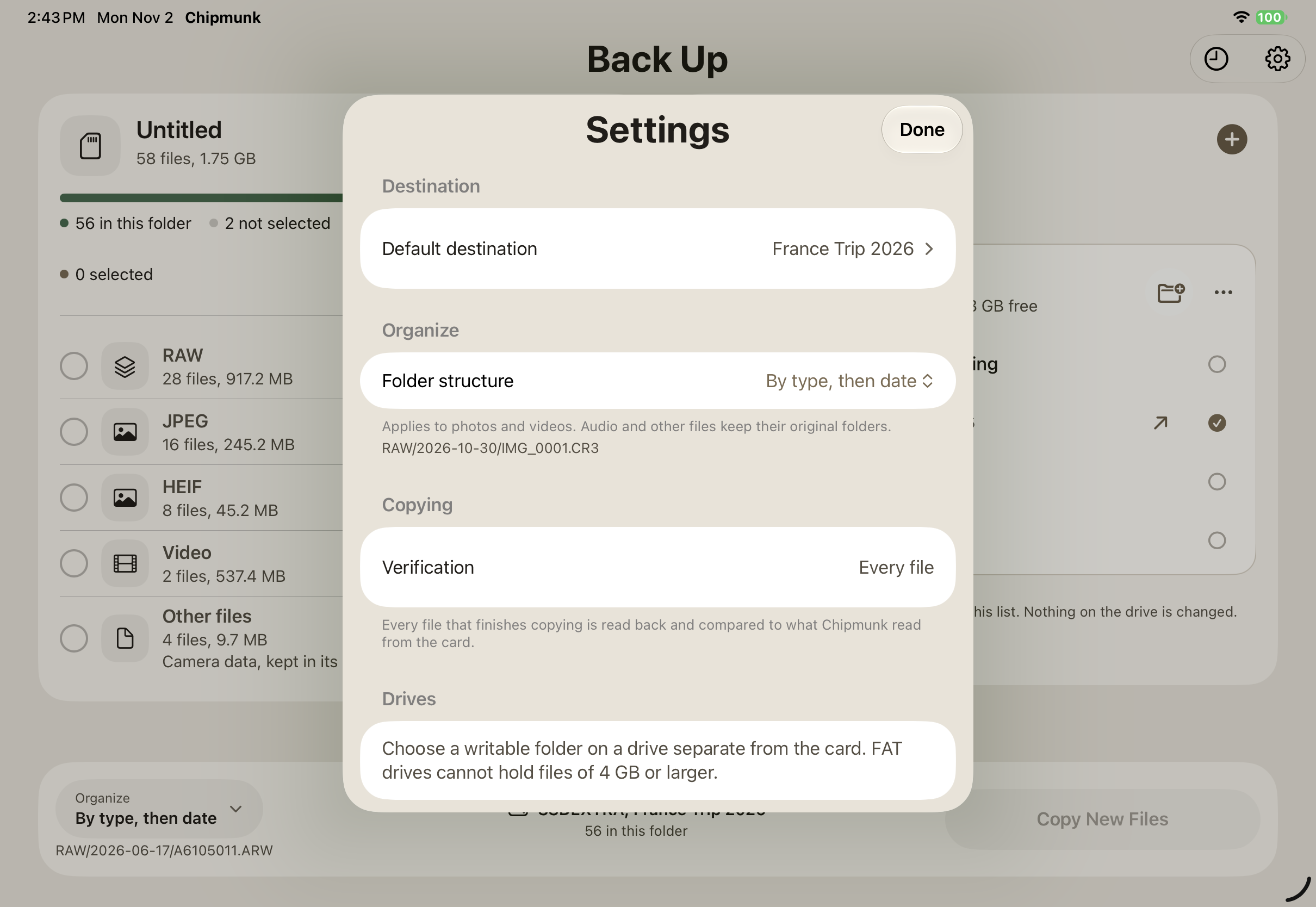
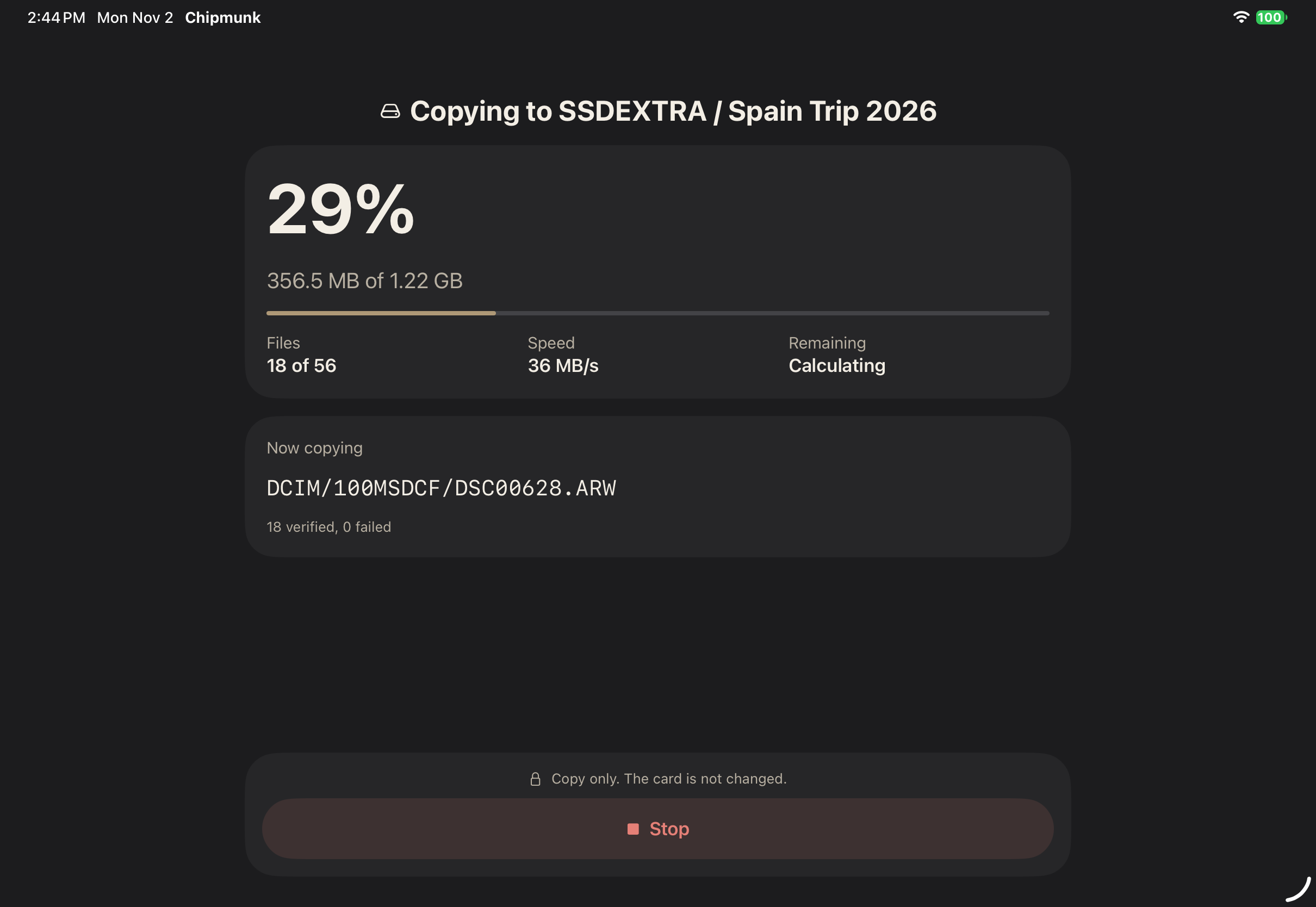
Progress shows the file in flight and how many have been verified. Stop is always available.
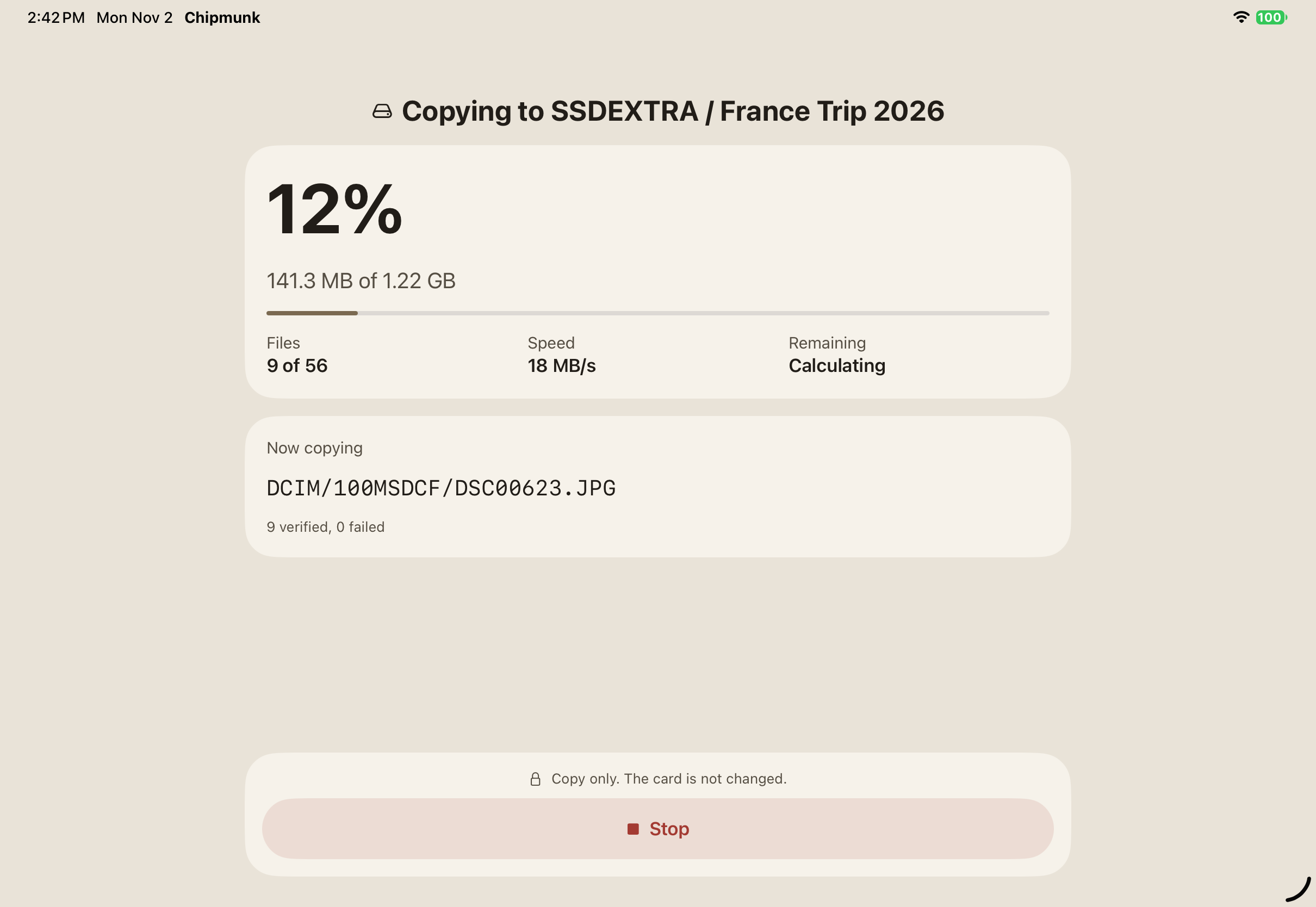
It leads with the answer. Show in Files opens the destination. Back Up Again returns to Main.
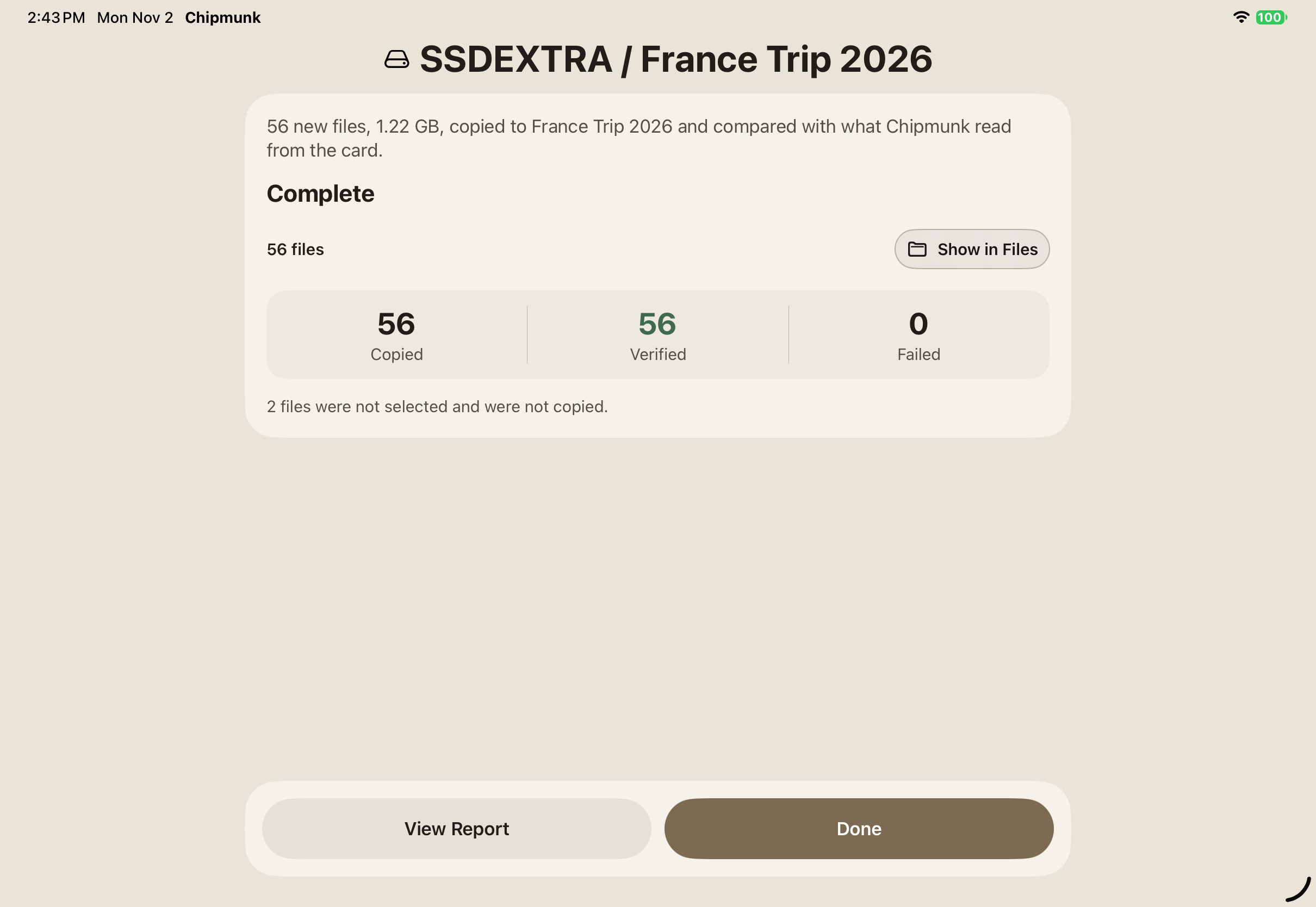
Know it's safe before you erase.
Chipmunk tells you what happened in that run, in plain words. Copied, Verified or Failed. If a run is interrupted, it never calls the files Verified. If it could not check every file, it says so.
A History list keeps a result for each run. The labels describe what happened in that run, not a claim about the drive today.
Other card types, such as CF and CFexpress, depend on your reader.
| The Files app | Chipmunk | |
|---|---|---|
| Confirms files arrived | No | Reads every file back and compares it |
| Remembers what is backed up | No | Yes, and offers only what is new |
| Stops if something changes | No | Stops if the drive is swapped, unplugged, renamed or deleted |
| Touches the card | Can move or delete | Copy only, never writes to the card |
| Overwrites files | Can | Never. A name clash gets a numbered suffix |
Chipmunk is not trying to be a full DIT suite. It does one job: get your files off the card and prove they arrived.
Shoots RAW and JPEG, travels with an iPad or iPhone instead of a laptop, carries a card reader and a portable drive.
Wants a second copy before leaving the venue. Cards get swapped all day, so it matters that Chipmunk recognizes a card it has seen before.
Large files, long copies, cards from several cameras. Needs to know the big files really arrived.
Audio recorders that write one folder per recording with one file per track. Chipmunk keeps those folders together.
Also a good fit: Documentary and indie filmmakers who want a simple offload, students learning the habit of copy, verify, then erase, and anyone with a dedicated camera who is tired of dragging folders.
Reads cards through the Files picker. Scans and counts every file by type, with scanning feedback on large cards. Handles an empty card and a card removed mid-session.
External drives (APFS, exFAT, and FAT with a clear 4 GB warning), On My iPad and iCloud Drive. It refuses the card itself as a destination, a destination on the same volume as the card, and read-only locations, each with a plain reason.
RAW, JPEG, HEIF, other photos, video, audio and other files, including drone and 360 footage. Choose Types lets you copy only what you want. A type with no files on the card does not appear.
By type then date, by date then type, by date only, or all in one folder. Dates come from file dates on the card. Audio and other files keep their original folders.
"Already backed up" needs proof: a full-file match, or a verified earlier copy that has not changed. A memory alone is never proof.
If the drive is too small you get a plain red message with what is needed and what is free.
Swap the drive, pull the cable, rename or delete the folder, and the run stops and tells you.
A name clash gets a numbered suffix.
Liquid Glass bars and controls, warm surfaces, Light and Dark. Two columns on a wide iPad, one column on iPhone and narrow windows. Works in Stage Manager windows.
VoiceOver reading order checked, Dynamic Type up to the largest accessibility sizes, Reduce Transparency and Increase Contrast supported, hardware keyboard operable.
Chipmunk's engine is built around ten rules. It never writes to or deletes from the card. It copies, never moves. It never overwrites an existing file. It copies to a temporary name first and claims the final name only when the copy is complete. It reads each file back from the destination with caching bypassed and compares the hashes. It records a file in its history only after that file verifies. And if the destination changes or disconnects mid-copy, the run stops.
Chipmunk was reviewed and tested by the builders and by independent AI-assisted review. Each rule was tested by deliberately breaking it.
Better you hear it here than find out on a shoot.
No account. No network requests. No data collected. No ads. Chipmunk works in Airplane Mode with a local drive.
Chipmunk is the field half of a pair. Chipmunk gets your footage safely off the card on location. Squirrel files it into your project when you get back to the desk. Chipmunk's folder logic matches Squirrel's, so what lands on the drive is what Squirrel expects.
Handcrafted software for people who make things.
Each app owns one area of your workflow and handles it completely.
No cloud forced on you. If an app supports sync, you bring the cloud you already use and trust. We just make it work.
No. It only reads from the card. There is no Move, Delete or Erase button. You erase the card yourself, when you decide.
Every file that finishes copying is read back from the destination and compared to what Chipmunk read from the card. The result screen tells you what happened in that run: Copied, Verified or Failed.
No. It is on for every file and included in the price.
Yes. Chipmunk remembers what it has backed up and offers only what is new. If you delete a file from the drive, it copies that file again.
No. Chipmunk runs on an iPhone or iPad.
If you copy to an external drive, the card reader and the drive have to be connected at the same time, so you need a device with two ports or a reader with a pass-through USB port. Copying to the device's own storage or to iCloud Drive needs only the reader.
No. Chipmunk is card based. It does not back up photos taken on your phone.
Chipmunk copies the files, but it does not reproduce clip folders exactly as the camera wrote them, and it does not use card-specific drivers. If your workflow depends on that, you may need a tool made for it.
No. It is $4.99, one time. No account and no ads.
No. It makes no network requests and collects no data.
Chipmunk stops and tells you. On an SSD, the last one or two files may be lost. Run the backup again and Chipmunk picks up what is missing.
See the guide and support links below, or write to the address on the support page.
$4.99, one time. iPhone and iPad, iOS and iPadOS 26 or later.